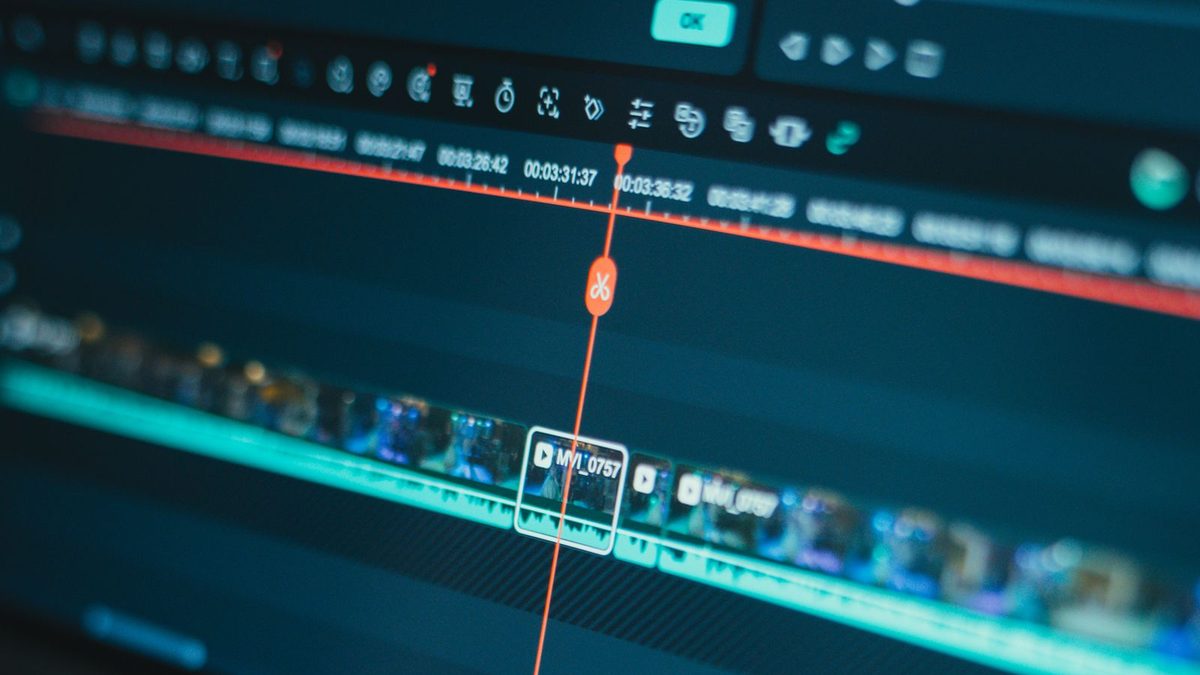
Video is where the audience is in 2026 — Shorts, Reels, TikTok, and long-form YouTube all reward people who publish consistently. The good news is that editing is no longer the skill that stops beginners. AI now handles the boring parts: it cuts the silences, adds captions, removes backgrounds, and even turns one long video into a week of Shorts. What used to take an evening in a complicated timeline now takes minutes.
The bad news is that every tool promises the same thing, and the free tiers hide their real limits behind watermarks, credit meters, and export caps. This guide compares the eight AI video editors that actually matter for a beginner in 2026, with real pricing checked in November 2026, honest free-tier limits, and a clear answer to the only question that matters: which one should you open first?
What to look for in your first AI video editor
Before comparing tools, decide what you will actually edit. A talking-head YouTube video, a 30-second Reel, and a client testimonial need different tools — and the wrong pick is how beginners end up paying for features they never touch. Judge every editor on four things:
- The watermark test. A free editor is only free if you can publish the export. Some tools watermark every free export, some only watermark when you use premium assets, and a few give you clean 1080p exports for nothing. Check this before you invest hours learning a tool.
- The meter that matters. Most 2026 editors meter AI features with credits or media minutes. A generous-looking free plan can run out after two videos. Find the meter — credits, minutes, or export count — and check whether it resets monthly or never refills.
- Where you edit. Phone-first creators should start on mobile; tutorial and talking-head creators want a desktop or browser editor with a real timeline. A tool that is brilliant on desktop can be miserable on a phone, and vice versa.
- Captions and cuts. The two AI features that save beginners the most time are auto captions (most viewers watch on mute) and silence removal. If a tool does both well, the rest is a bonus.
One more honest note: no editor makes a boring video interesting. AI removes the friction, but the idea, the hook in the first three seconds, and the pacing are still yours. Pick a tool, then spend your energy on the video itself.
The 8 tools at a glance
| Tool | Best for | Free plan | First paid step |
|---|---|---|---|
| CapCut | Short-form social video | Yes — 1080p, clean on basic edits | Standard $9.99/mo; Pro $19.99/mo |
| Descript | Talking-head and podcast video | Yes — 60 min/mo, 720p, watermarked | Hobbyist $16/mo (annual) |
| Filmora | Desktop beginners, longer YouTube videos | Yes — watermarked exports | Basic $49.99/year (~$4.17/mo) |
| Clipchamp | Simple free editing on Windows | Yes — 1080p, no watermark | Premium via Microsoft 365 from $9.99/mo |
| Opus Clip | Turning long videos into Shorts | Yes — 60 credits/mo, watermarked | Starter $15/mo |
| Runway | AI effects and generated clips | Yes — 125 one-time credits, watermarked | Standard $12/mo (annual) |
| VEED | Browser editing, subtitles, teams | Yes — 720p, watermarked, 10 min/mo | Pro $24/mo |
| DaVinci Resolve | Serious editing, zero cost | Yes — full editor, 4K, no watermark | Studio $295 one-time |
All prices are from official pricing pages and independent October–November 2026 checks, in US dollars, and they change often — confirm the current price before you pay. The rest of this guide goes tool by tool.

CapCut — the best free start for Shorts and Reels
CapCut is where most beginners should start, and it is the consensus pick across 2026 roundups for one reason: it is the easiest editor that is also genuinely free. It runs on phone, desktop, and web, and its AI kit covers exactly what short-form video needs — auto captions, background removal, auto reframe for vertical video, text-to-speech, and script-to-video.
The free tier is generous in the way that matters: basic manual edits export in 1080p without a watermark if you delete the ending card. The catch is the paywall map. Premium templates, effects, and some AI features are tagged Pro, and using one burns a watermark into your export that you cannot remove. Pro costs $19.99 a month (or $179.99 a year) and adds 1,200 AI credits a month and 1 TB of storage; a cheaper Standard tier at $9.99 a month removes watermarks on Pro assets but keeps limited AI on mobile. Pricing varies by region and platform, so check your app store before subscribing.
Start here if: you shoot on your phone and post to TikTok, Reels, or Shorts. Skip it if: you edit long talking-head videos — Descript below will save you more time. If you are building a faceless channel specifically, our faceless YouTube tools guide pairs CapCut with the AI tools that generate the footage itself.
Descript — edit video by editing text
Descript is the easiest editor in a completely different way: you never touch a timeline. Record or upload a video, Descript transcribes it, and you edit the transcript like a document — delete a sentence from the text and it disappears from the video. Filler words like "um" and long silences can be removed in one click, and its Underlord AI assistant can draft the cut for you.
The free plan gives you 60 media minutes a month, 720p exports with a watermark, and 100 one-time AI credits. Hobbyist is $16 a month on annual billing ($24 month-to-month) with 10 media hours and 1080p export; Creator is $24 a month annually with 30 hours and 4K. The meter to watch is media hours — a weekly 20-minute video eats the Hobbyist plan in two episodes, so count your footage before you pay.
Start here if: your videos are mostly you talking to a camera, or you edit podcasts and interviews. Skip it if: you want cinematic effects or motion graphics — Descript is a word processor for video, not a visual-effects studio. For the voiceover side of talking-head videos, see our AI voice generators guide.
Filmora — the friendly desktop timeline
Filmora sits between CapCut and the professional editors: a real multi-track timeline you can learn in an afternoon, with AI features layered on top — Smart Short Clips that pull highlight clips out of long footage, text-based editing, an AI Copilot that suggests edits, and auto captions. It is the best pick if you want to graduate from phone editing to a proper desktop workflow without the learning curve of Premiere or Resolve.
The download is free, but every free export carries a watermark, and AI tools run on credits — the free plan includes a limited allocation of about 100 AI credits. Basic costs $49.99 a year (about $4.17 a month) and removes the watermark; the Advanced plan at around $5 a month adds 1,000 AI credits. That makes Filmora one of the cheapest watermark-free desktop options in this list.
Start here if: you make longer YouTube videos on a computer and want a real timeline without a real learning curve. Skip it if: you only edit on your phone — CapCut is faster there.
Clipchamp — the free, watermark-free Windows pick
Clipchamp is Microsoft's editor, built into Windows 11 and available in the browser, and it wins one category outright: it is the only editor here whose free plan exports watermark-free 1080p video with no stated cap on minutes or exports. For a beginner who just wants to cut clips, add text, and publish, that is hard to beat.
It is also the calmest editor in this list — a clean interface, a built-in screen and webcam recorder for tutorials, and an AI voiceover feature. Premium features (brand kits, premium stock) come through Microsoft 365, from $9.99 a month. The trade-off is scope: fewer AI tricks than CapCut or Filmora, no text-based editing, and a smaller template library.
Start here if: you are on Windows, you want zero cost and zero watermark, and your edits are simple cuts, captions, and voiceover. Skip it if: you need advanced AI features like auto-reframe or long-to-short clipping.

Opus Clip — one long video, many Shorts
Opus Clip does one job, and it does it better than any general editor: feed it a long video — a podcast, a webinar, a 20-minute tutorial — and its AI finds the best moments, cuts them into vertical clips, adds animated captions, and scores each clip for viral potential. For creators who want a week of Shorts from one recording session, this is the biggest time-saver in this guide.
The free plan gives you about 60 credits a month with watermarked exports; Starter is $15 a month. The honest limit is quality control: AI picks the moments, but it cannot tell a genuinely good hook from a loud one, so expect to reject half the clips it suggests. Used as a first draft machine rather than an autopilot, it is excellent.
Start here if: you already record long videos and want Shorts without re-editing everything by hand. Skip it if: you do not have long-form footage yet — it has nothing to clip.
Runway — AI effects and generation
Runway is the odd one out: it is part editor, part AI film studio. Beyond normal cutting, it offers object removal, motion tracking, and green-screen without a green screen, plus text-to-video generation for clips you cannot film. It is the tool for music videos, experimental content, and visual effects that would be impossible in CapCut.
The free plan gives you 125 one-time credits — note "one-time": they never refill — and free exports are watermarked. Standard is $12 a month on annual billing ($15 month-to-month). Runway is a specialist, not a daily driver: most beginners will use it for a few shots inside a video edited elsewhere, not for the whole edit.
Start here if: you want AI-generated b-roll or effects that no other tool in this list can do. Skip it if: you just need clean cuts and captions — the credits will run out before the novelty does.
VEED — the browser-based all-rounder
VEED lives entirely in the browser, which makes it the easiest editor to start: no download, no install, works on any computer. Its strengths are subtitles (auto-generated in 125+ languages, per a September 2026 comparison), templates, and collaboration — handy if you edit with a teammate or a client. The free plan includes 10 video minutes a month and 2 minutes of auto subtitles, with watermarked 720p exports. Pro is $24 a month.
VEED is the most expensive first paid step in this list, and its free meter is the tightest. It earns its place for one audience: people who edit on shared or low-powered computers and need subtitles in multiple languages.
Start here if: you edit in a browser, need strong subtitles, or collaborate with others. Skip it if: you want the cheapest path — Clipchamp or CapCut give you more for free.
DaVinci Resolve — the free professional editor
DaVinci Resolve is the only tool in this list that is a full professional editor with no published free meter: the free version exports up to 4K at 60 fps with no watermark, no credits, and no time limit. It is what many professional colorists and editors actually use, and its free tier is more powerful than most paid editors.
The catch is the learning curve. Resolve has fewer AI shortcuts than the tools above — its AI features exist (magic mask, voice isolation, smart reframing) but they are buried in a professional interface, and the software is heavy on older computers. The paid Studio version is a one-time $295. Treat Resolve as a destination, not a starting point: learn editing on CapCut or Filmora, then move here when you outgrow them and want the ceiling to disappear.
Start here if: you are serious about editing as a skill, your computer can handle it, and you want to never pay a subscription. Skip it if: you want your first video out tonight — the interface alone takes a weekend to learn.

The $0 starter stack
You can publish real videos without spending anything. Here is the combination that covers the most ground for $0:
- Short-form (Reels, TikTok, Shorts): CapCut free — auto captions, templates, clean 1080p exports on basic edits.
- Talking-head or tutorial: Clipchamp free — watermark-free 1080p, screen recorder built in. Or Descript free if you prefer editing by transcript and your videos are short.
- Repurposing: Opus Clip free — turn one long recording into several Shorts each month.
- Long-term upgrade path: DaVinci Resolve free — install it now, learn it slowly, switch when you are ready.
Pay only when a specific limit blocks you: a watermark on the export you need, a credit meter that runs out mid-month, or a 720p cap on a video that deserves 1080p. Until then, the free tiers above are genuinely enough to build a channel. If video is part of a bigger creator plan, our YouTuber toolkit guide covers the scripting, thumbnail, and analytics tools that sit around the editor.
Five mistakes beginners make
- Collecting editors instead of finishing videos. Downloading five tools and comparing them for a month is procrastination dressed as research. Pick one, publish three videos with it, then judge.
- Ignoring the watermark until export day. Always do a test export with a 10-second clip before editing a full video in a new tool. Finding the watermark after two hours of editing is the classic beginner loss.
- Paying before the free tier breaks. Every paid plan in this guide exists to remove a specific limit. If you have not hit that limit, you are paying for a feature list, not for work.
- Overusing AI effects. Auto-zooms, glitch transitions, and AI b-roll are seasoning, not the meal. One effect per scene is plenty; a video where every cut has an effect looks amateur, not professional.
- Skipping captions. Most social video is watched on mute. A video without captions loses a large share of its audience in the first seconds — and auto captions take one click in almost every tool above.
Your first edited video in one evening
- Hour 1 — shoot: Record one 3-minute video on your phone: a tip, a reaction, or a mini-tutorial. Film in good light, near a window, with the phone steady. Good footage matters more than any editor.
- Hour 2 — rough cut: Open CapCut (or Clipchamp if you are on Windows). Import the clip, trim the dead air at the start and end, and let auto captions generate the subtitles. Fix any caption errors by hand.
- Hour 3 — polish and publish: Add one piece of background music at low volume, a title card in the first two seconds, and export in 1080p. Do a 10-second test export first to check for watermarks, then publish the real thing.
Three hours, zero cost, one published video — and now you have something real to improve on. The second video will take half the time, because the tool is no longer the mystery. Revisit this guide when you hit a limit: the right upgrade is the one that removes the exact wall you just hit.
Video is only half the creator toolkit
Editing gets your videos published — but scripting, thumbnails, titles, and the AI tools behind them decide whether anyone watches. The Pack covers 30+ AI tools with honest 2026 pricing and copy-paste workflows for research, writing, and video — the same toolkit this guide's $0 starter stack is built from.
Get The AI Tools Starter Pack — $9